The Stock Management screen is where all the stock levels for products can be seen an updated.
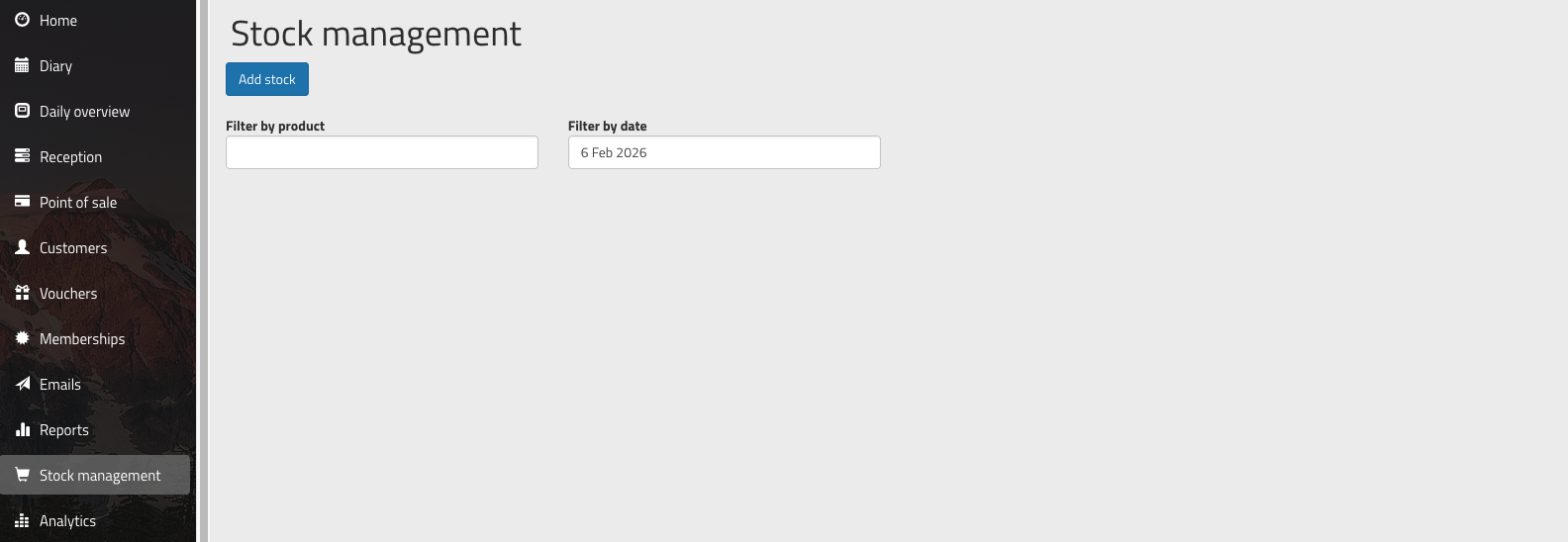
When you're setting up products to use inventory management for the first time, the list of products will be blank:
To add stock for a product:
- click the 'Add stock' button
- select your product from the dropdown list (if your product does not show in this list, it has not been configured to use inventory management)
- enter the quantity to add to inventory
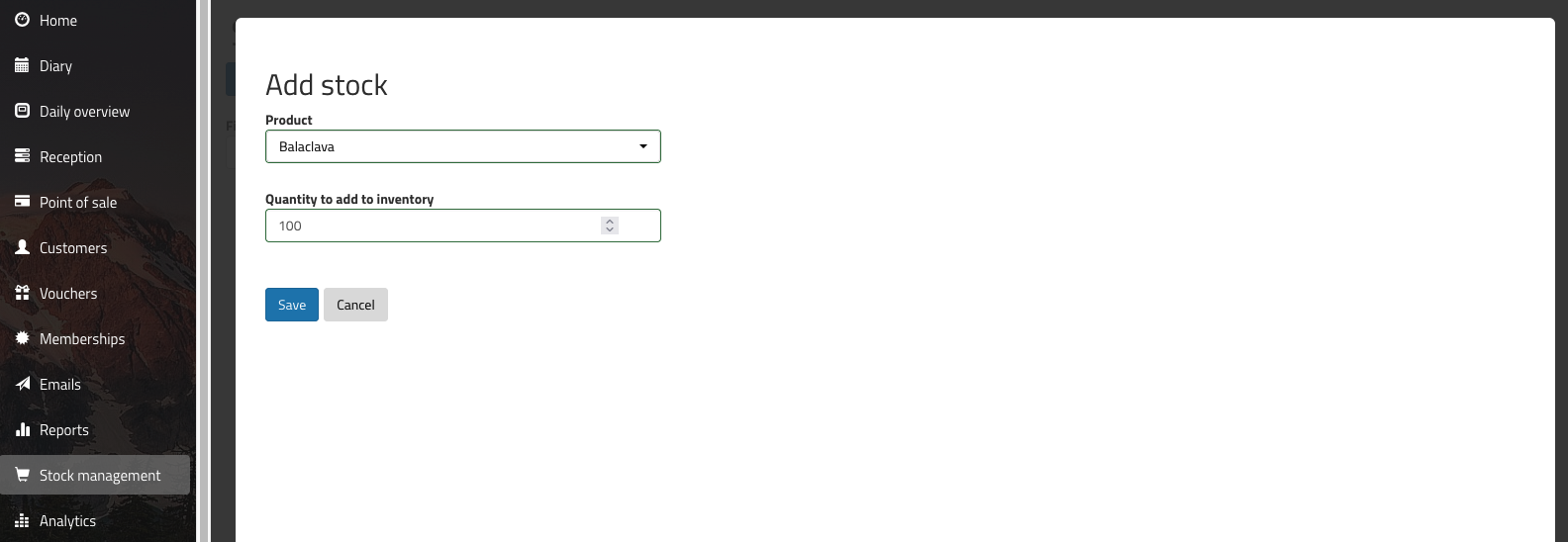
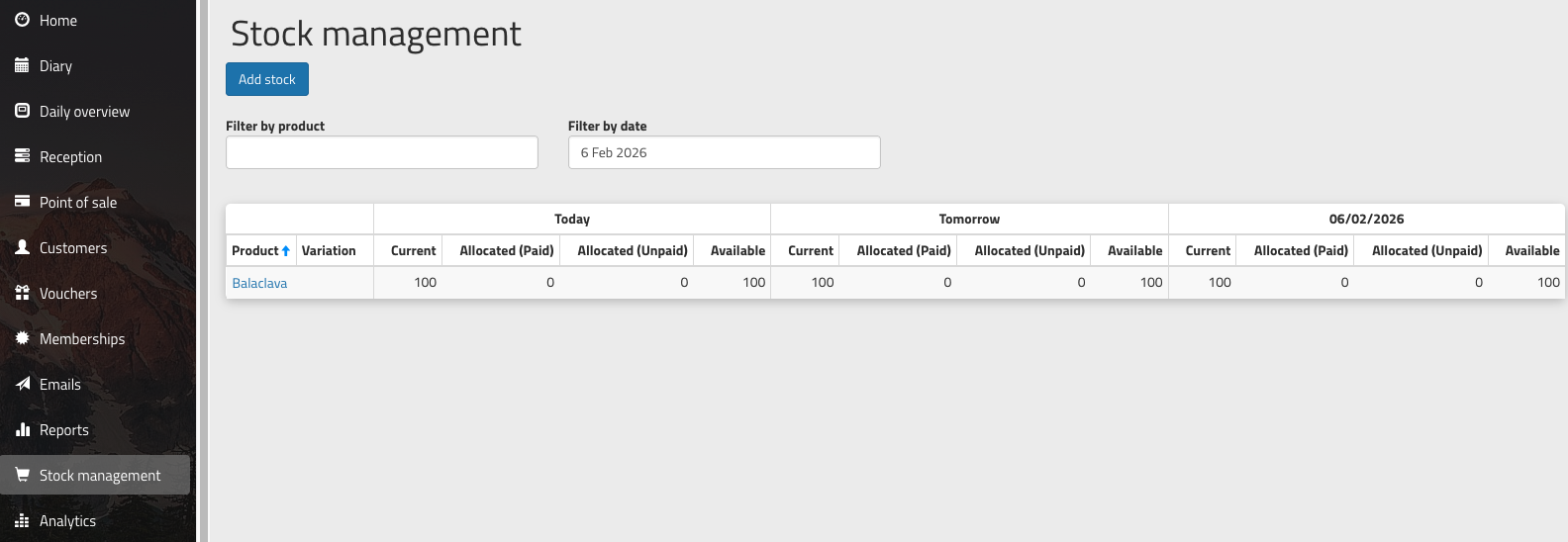
Click 'Save' to add your stock to the inventory for a product. The Stock management screen will an updated value for 'Current' with your new stock levels.
These steps are the same whether you are adding stock for the first time to a new product, or adding new stock to an existing product.
Was this article helpful?
That’s Great!
Thank you for your feedback
Sorry! We couldn't be helpful
Thank you for your feedback
Feedback sent
We appreciate your effort and will try to fix the article