Alpha Flow enables you to track stock levels for the physical products you sell at your venue, such as clothing, snacks, or equipment add-ons (for example: balaclavas, hats, t-shirts, gloves, etc.)
Once configured, the system can:
- Show staff when stock is running low
- Email staff when it's time to order new stock
- Give admin users control over how far products can be oversold
- Track when products have been distributed to customers
Product Settings
Product inventory settings are configured per product.
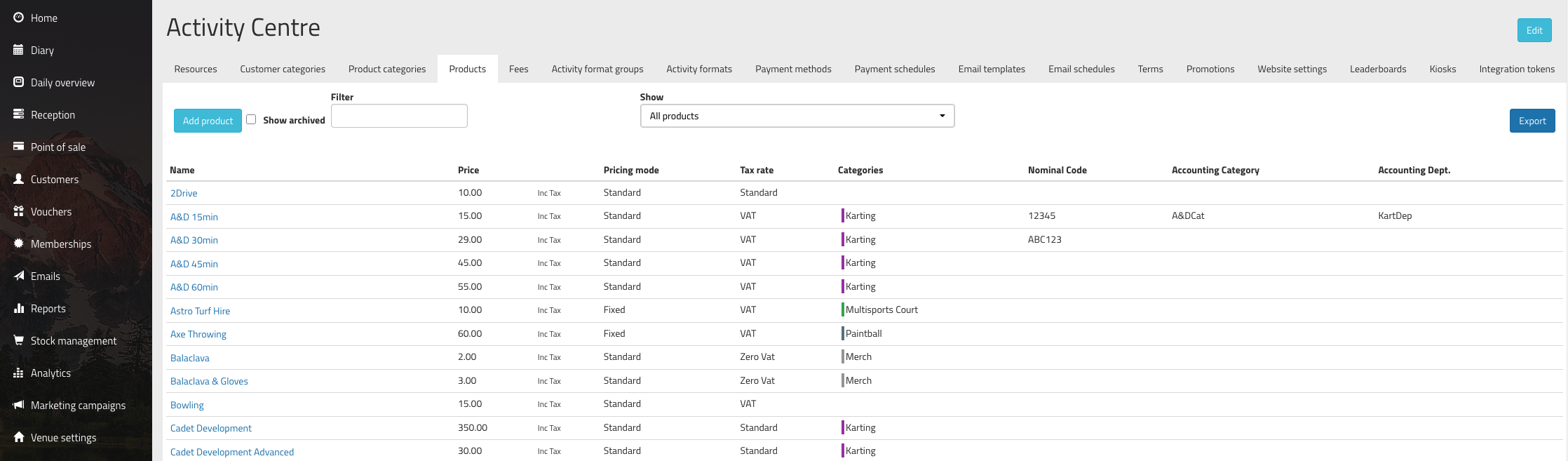
To access your product settings, head to Venue Settings > [Venue Name] > Products.
There's a filter to show 'all products', 'activity products', or 'non-activity products'. An activity product is one that's linked to an activity format, and a non-activity product is a physical item with configuration for managing inventory.
Click on a product's name to see and update its settings.
The stock configuration settings are at the bottom of the page:
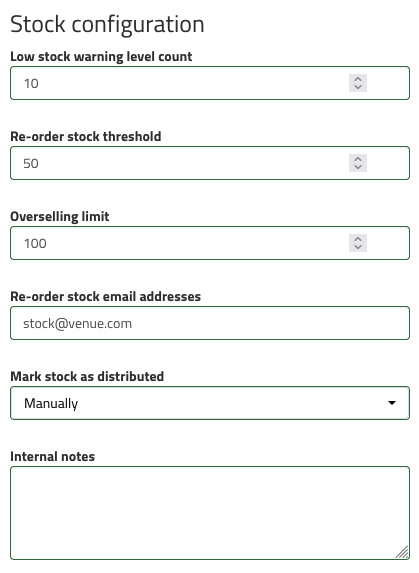
- Low stock warning level count - this field is mandatory, and sets the level at which users will be shown a 'low' warning against products in the diary and point of sale screens
- Re-order stock threshold - when stock levels drop below this threshold, an email notification will be sent to the specified addresses so that new stock can be ordered
- Overselling limit - this is how far below zero the system will allow a product to be sold. For example, if you know you can get supplies of this product quickly, you may want to allow overselling so that future sales won't be blocked
- Re-order stock email addresses - a comma-separated list of addresses who should be notified when this product reaches its re-order stock threshold
- Mark stock as distributed - for products attached to events, you can mark these as 'manually' given out via the reception screen, or you can set this to 'automatically' and the system will automatically mark all products as given out once the event has finished
- Internal notes - an optional area for you to log specific notes for the product (for example, supplier details, storage location, or special handling notes)
Click the 'Save' button at the bottom of the page to save the changes to your product.
After you've configured your product to use inventory management, the final step is to set the current stock level. Once this is done, stock for the product will be fully tracked within the system.
Was this article helpful?
That’s Great!
Thank you for your feedback
Sorry! We couldn't be helpful
Thank you for your feedback
Feedback sent
We appreciate your effort and will try to fix the article