Alpha Flow can capture photos of your customers when they register for events, and these photos can be shown both to staff as well as on the rental karting TV screens.
Enabling Photo Capture
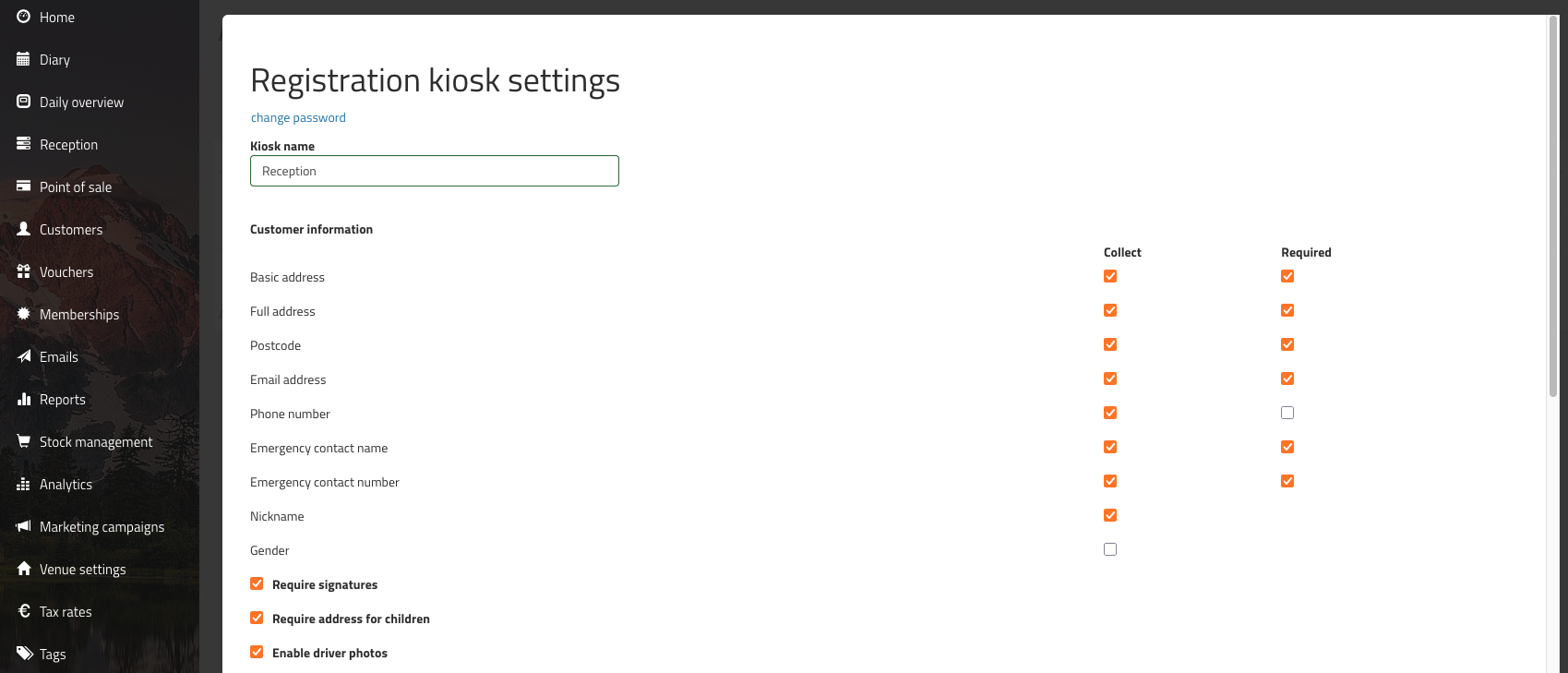
To turn on this feature, head to Venue Settings > [Venue Name] > Kiosks, and edit your kiosk.
There's a checkbox labelled "Enable driver photos". Tick this, then scroll to the bottom and click 'Save' to update your settings.
Capturing Photos
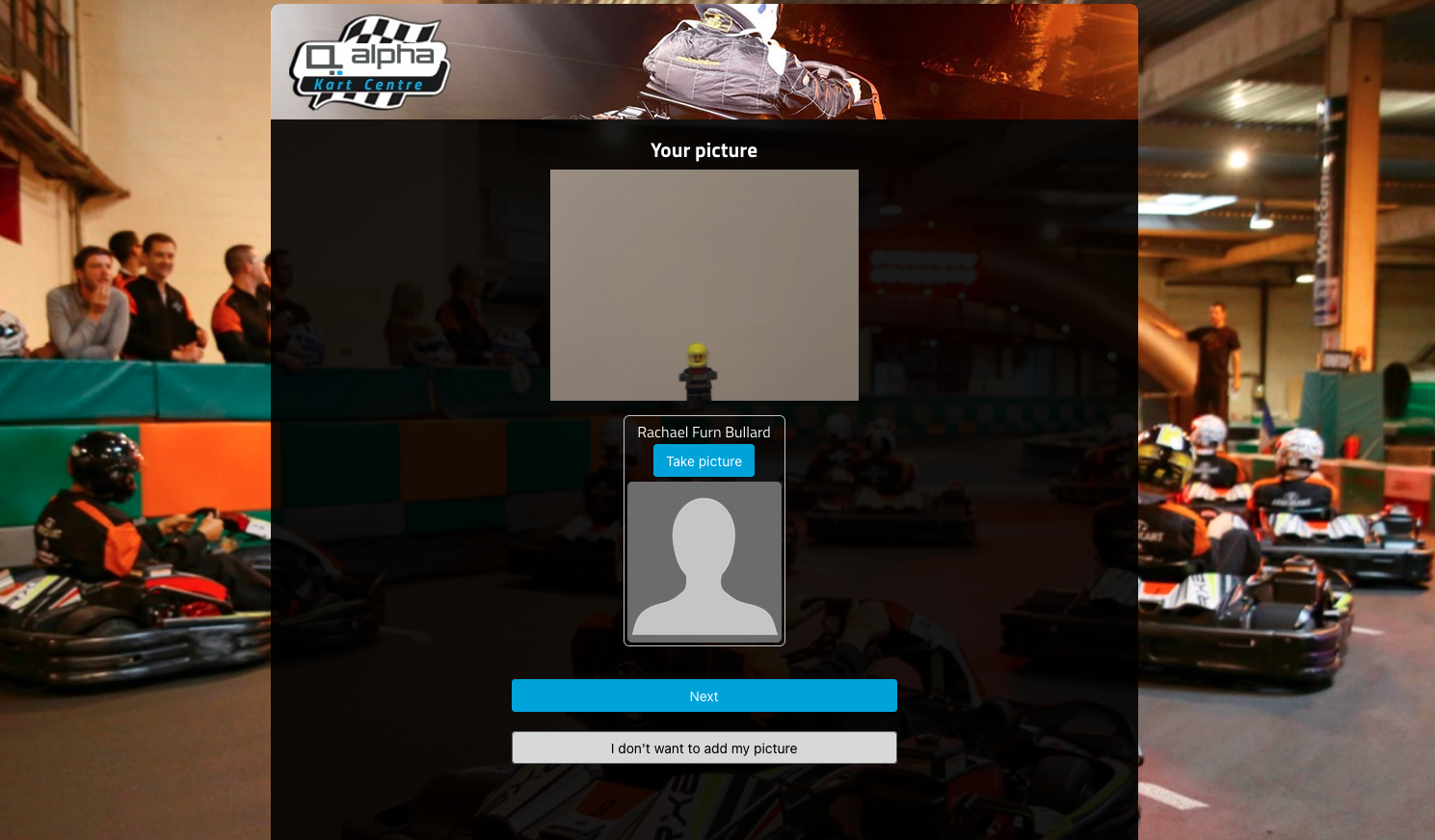
Once you've enabled the option to capture driver photos, a step is added to the kiosk registration process (which will also be added to the web registrations if they're linked to the same kiosk). The page gives customers a preview of their camera, and a 'Take picture' button to take the photo.
Customers do have the option to click "I don't want to add my picture" if they're not able / willing to add a photo at this point.
Where you will see the photos
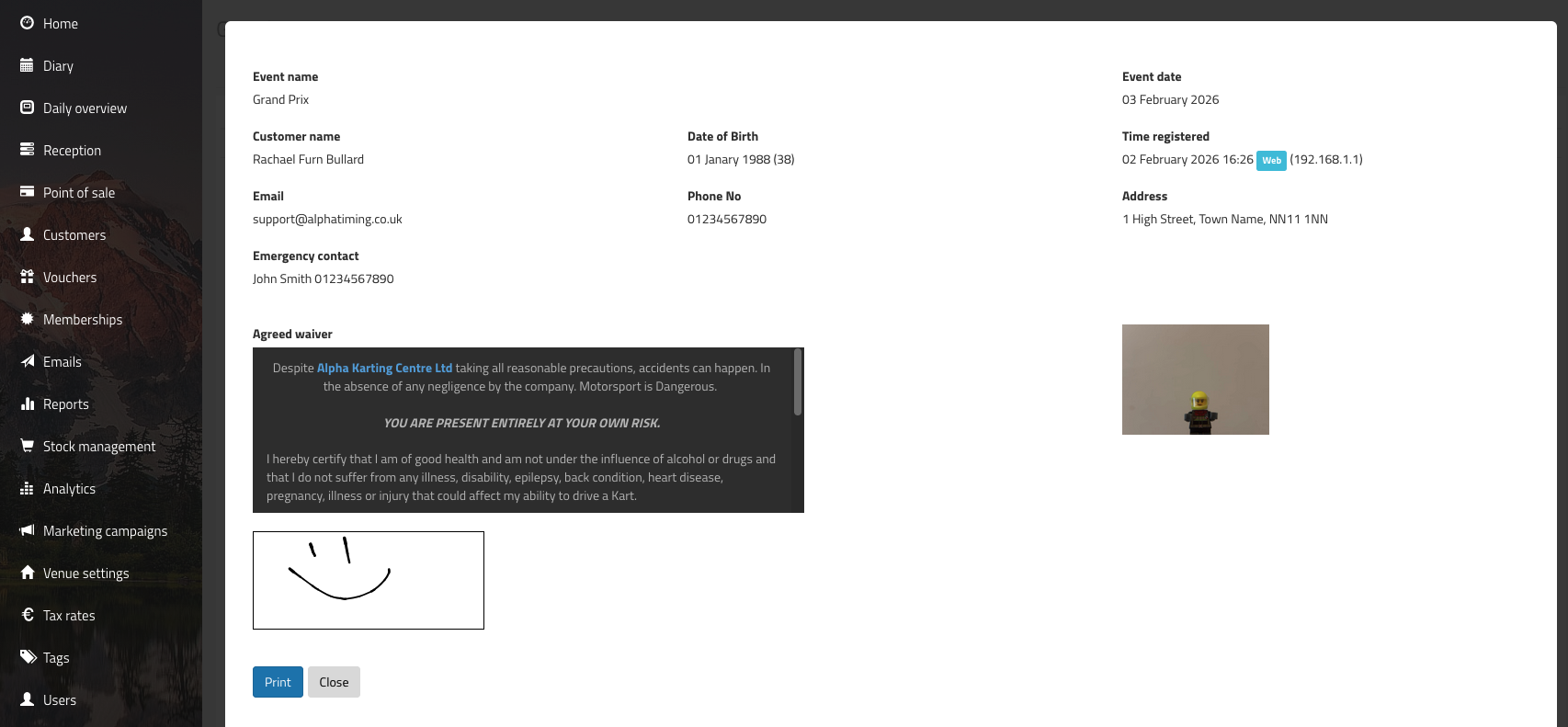
You will see the photos when viewing a registration in the 'registrations' tab from a booking in the Diary screen.
Photos can also be accessed from the Reception screen by clicking on the camera icon next to a customer's name.

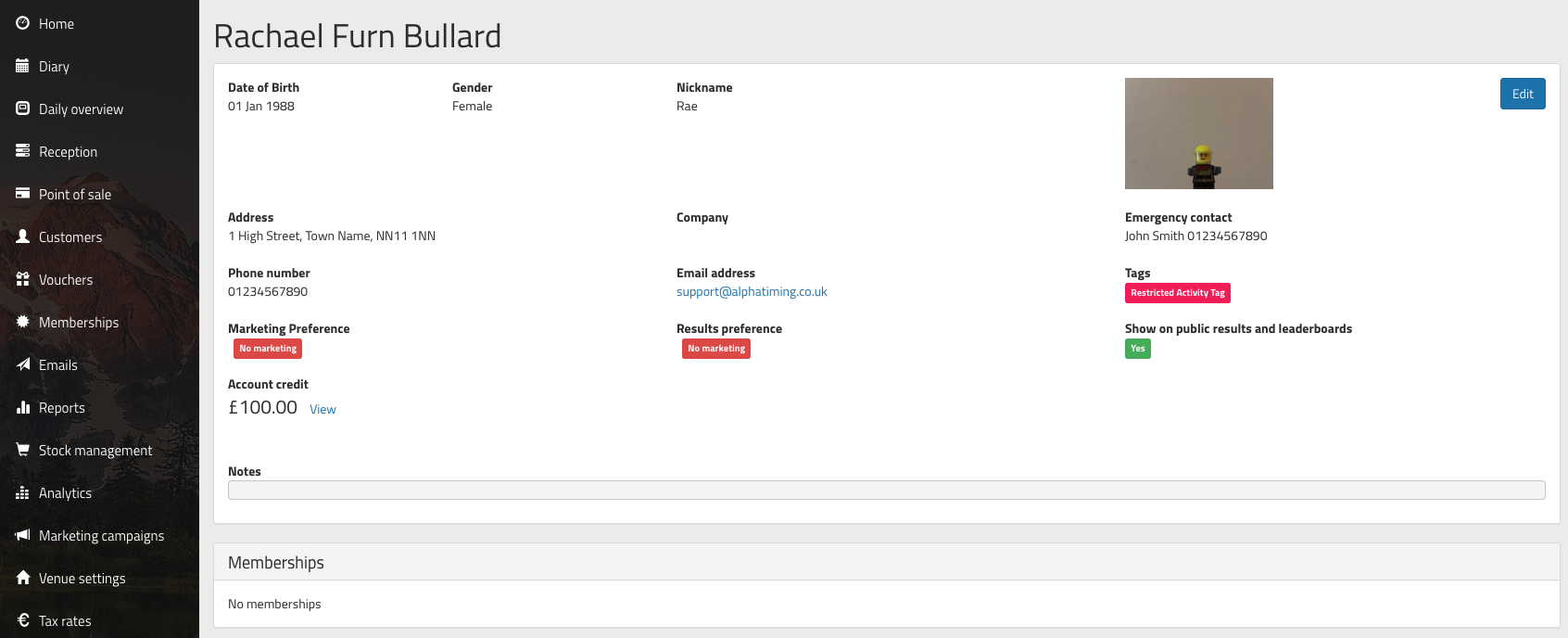
You will also see the photo when viewing a customer record:
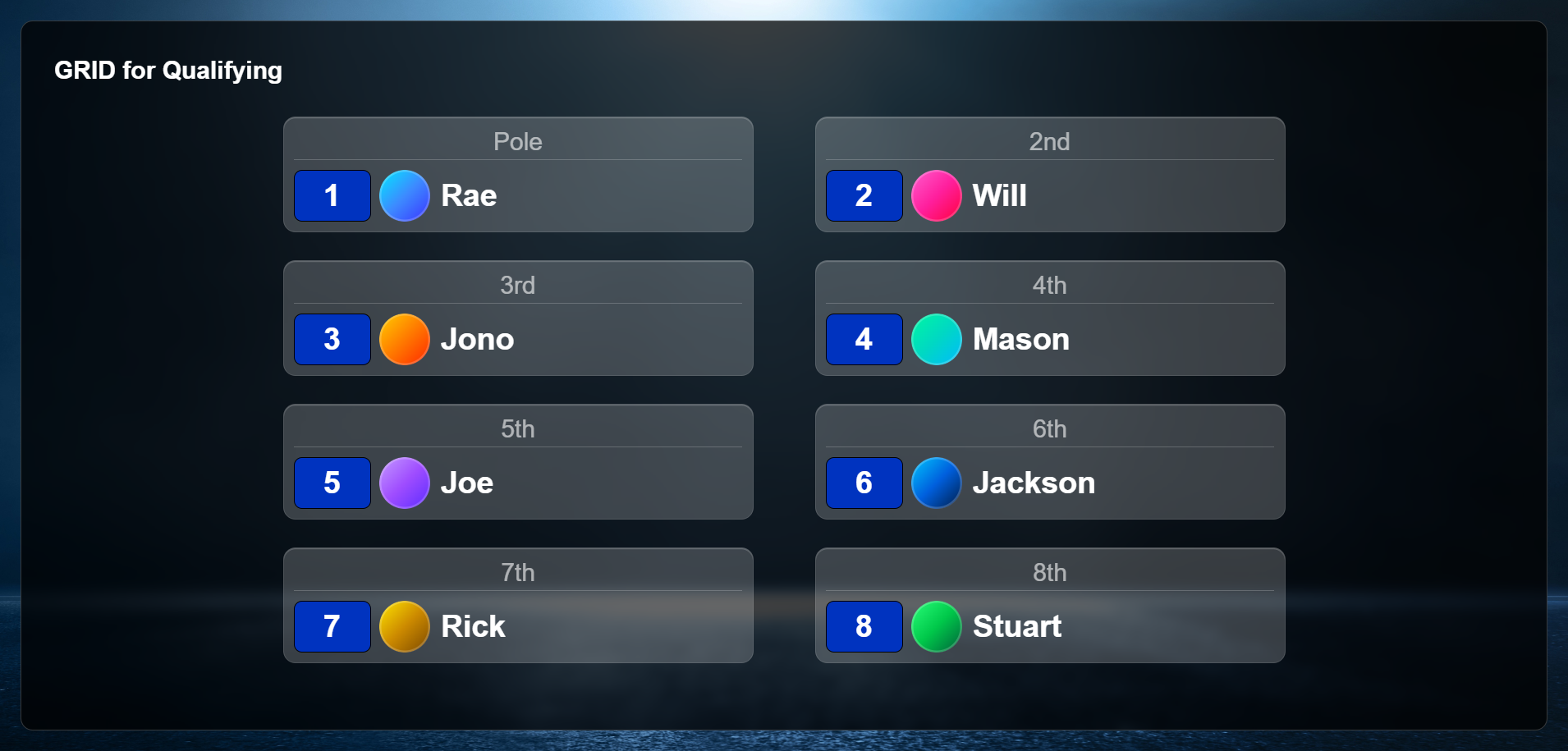
Finally, if you're using one of the Rental Karting TV screens, the coloured circle against each driver will be replaced with their photo:
Was this article helpful?
That’s Great!
Thank you for your feedback
Sorry! We couldn't be helpful
Thank you for your feedback
Feedback sent
We appreciate your effort and will try to fix the article