The Analytics module is used to track and visualise your total revenue or product revenue over a specified time period. You can also compare your selected time period against another selected time period. To create a report, click the New report button under your preferred report.
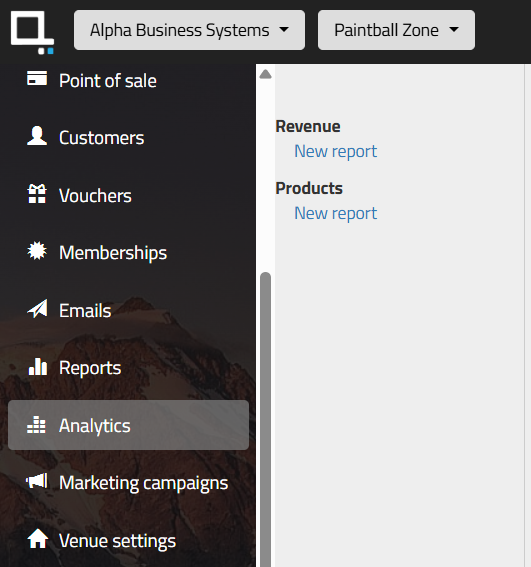
Revenue Report
Use the Revenue report to track all money taken across your business, including bookings and non-activity bills.
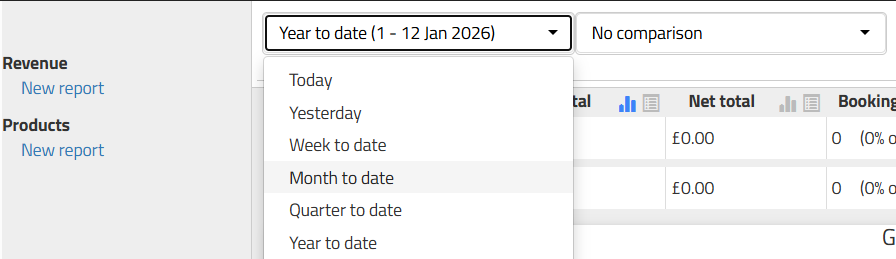
Use the left dropdown to select your primary date range. The following options can be selected:
- Today
- Yesterday
- Week to date
- Month to date
- Quarter to date
- Year to date
- Last 12 months
- Last week
- Last month
- Last quarter
- Last year
- or a custom date range of your choosing.
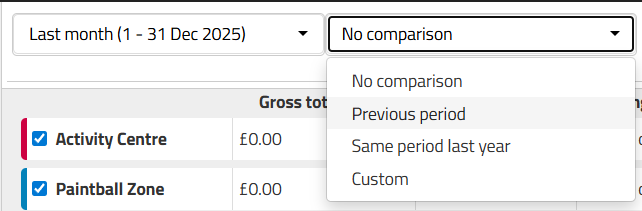
Use the right dropdown to select a second time period to compare against your primary range.
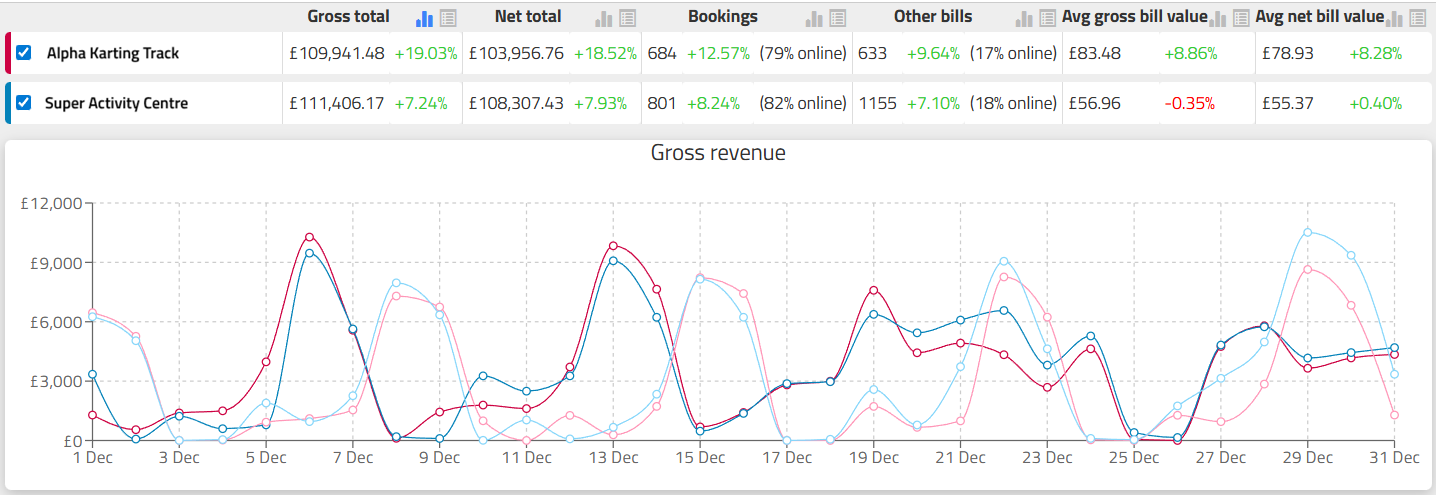
For your selected time period, you can select to display, the Total Gross or Net revenue. Selecting the relevant button next to the wording will display the data in the corresponding format.
 | View trends via line graphs or bar charts |
 | View raw data in a table form |
In addition to the Total revenue you can also display
- the value of any Bookings
- value of other bills i.e. non activity bills
- the Average gross bill value
- Average net bill value
- Products Report.
If you manage multiple venues, you can filter by selecting the required venue. The graphs will use color-coding (indicated next to the venue name) to differentiate between them.
Products Report
The Products report focuses specifically on the sales and volume of products, excluding fees and other non-product revenue.
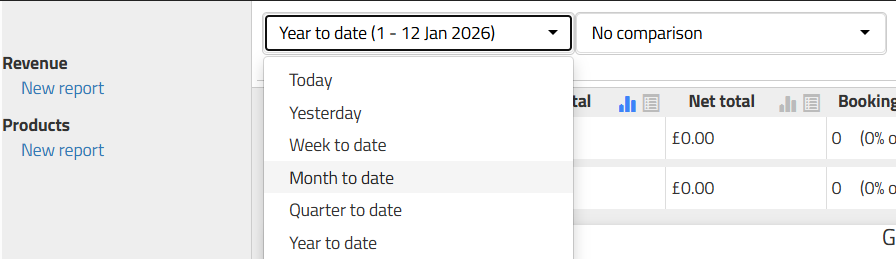
Set your time frame using the left dropdown to select your primary date range and the right dropdown to select a second time period to compare against your primary range, exactly as you would in the Revenue Report. Periods that can be shown are:
- Today
- Yesterday
- Week to date
- Month to date
- Quarter to date
- Year to date
- Last 12 months
- Last week
- Last month
- Last quarter
- Last year
- or a custom date range of your choosing.
For your selected time period, you can select to display, in both a graph or table format the Total Gross or Net revenue of your product sales. Selecting the relevant button next to the wording will display the data in the corresponding format.
| Graph i.e. line graph or bar chart |
| Table form |
In addition to the Total revenue you can also display
- Total of any discount
- Total quantity of items
- Total number of bills
- Average gross bill value
- Average net bill value
Plus for any activity products
- Total events
- Total sessions
- Average places booked
- Average participants
When comparing two periods, the percentage increase or decrease will be displayed on the left-hand side of the metrics to help you identify growth trends at a glance.

Saving your Reports
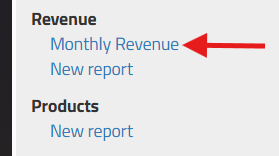
At the top of the screen is an Apply and Save button. If you make any changes to the date ranges, you can click Apply to recalculate the report. If this is a report you will look at regularly, you can click Save and give it a name to save it. This will then be shown as a link under the corresponding Analytic report types, which you can click to create the report again.
Was this article helpful?
That’s Great!
Thank you for your feedback
Sorry! We couldn't be helpful
Thank you for your feedback
Feedback sent
We appreciate your effort and will try to fix the article