The Timing app comes with a simulator for testing or practising using the timing app. It will be installed onto your PC at the same time the Timing app is installed. Search for Alpha Simulator from your Start bar.
Note: The Simulator cannot be used if the Timing App is connected to a decoder.
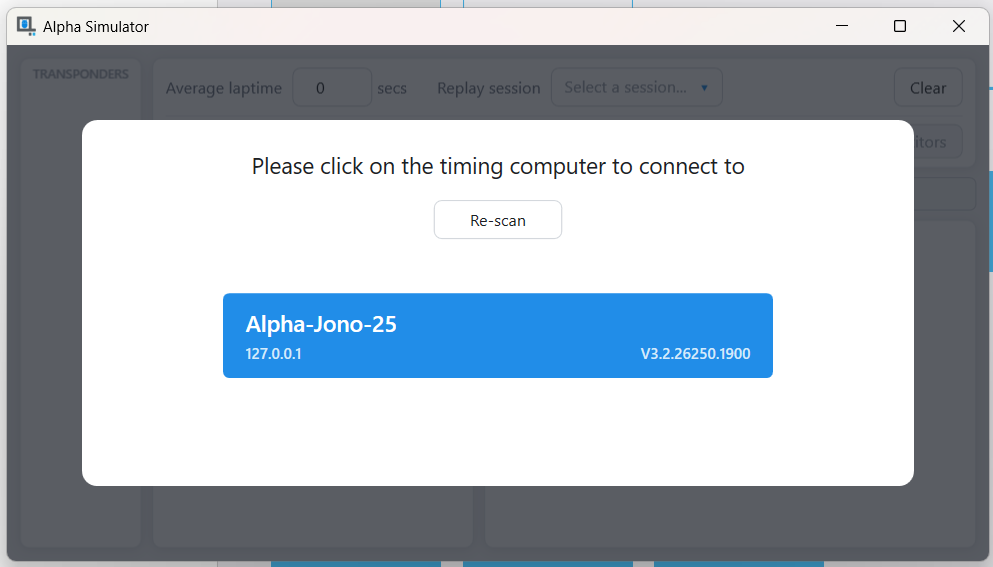
Make sure the Timing app is running before opening the Alpha Simulator app. When you open the app, it will find any PC that is running the Alpha Timing App. Select the big blue box to connect the simulator to that timing PC.
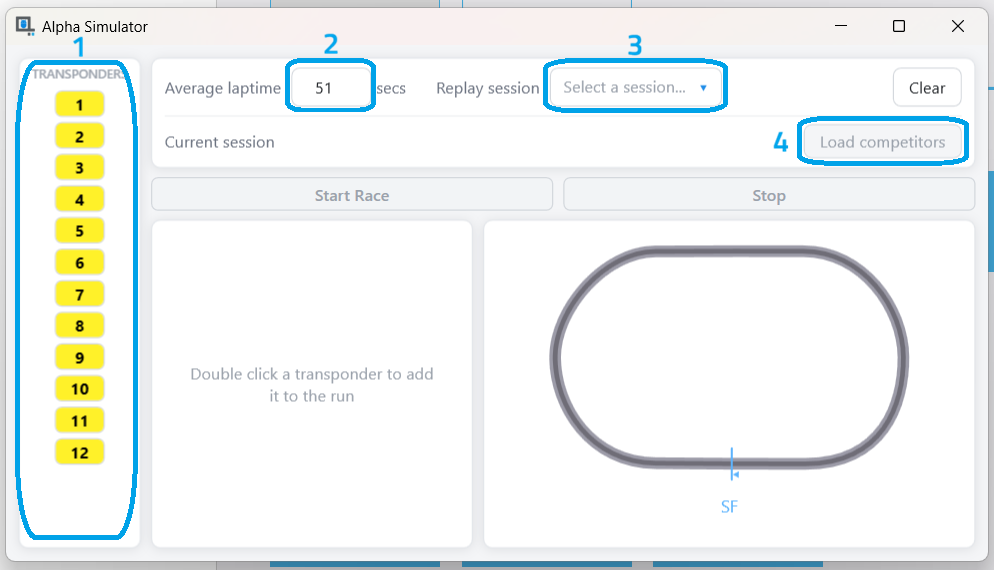
When you connect successfully to a timing PC, you will see the main screen of the simulator. Before you start timing there are four sections to configure:
- The Transponder list - Here you will see the lists of transponders in the timing app.
- Average Laptime - this is the approximate laptime to simulate for each competitor (+/- 0.5 seconds). You can only use a whole number and is required before using the simulator.
- This drop down allows you to select a session to replay real passing data instead of using the passings simulation.
- Click Load competitors to input the competitors from the Timing app's current session.
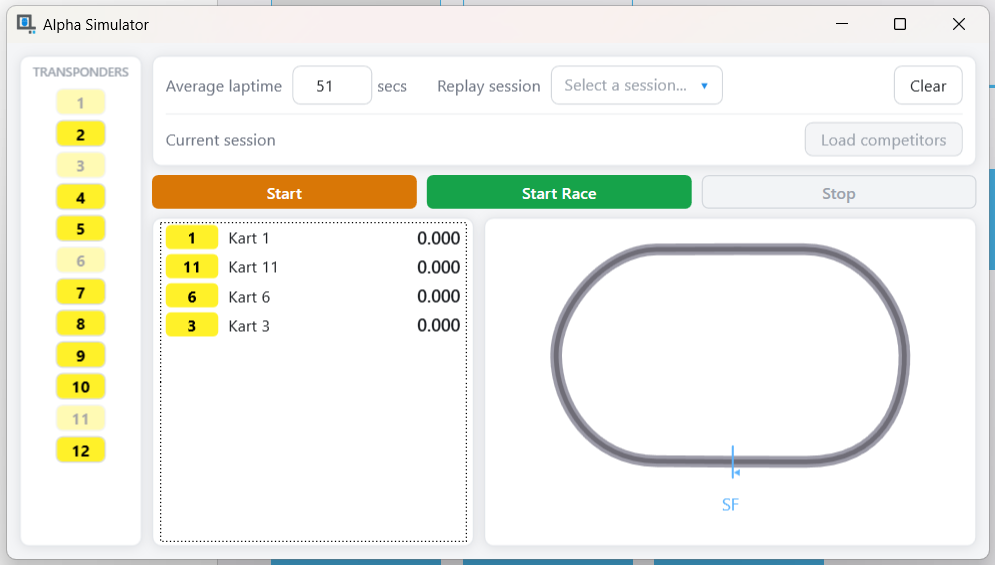
Starting or Replaying passings
After adding transponders, loading competitors, or selecting a previous session, click Start to simulate tight-formation passings, or Start Race to simulate race passings or replay a session.
The competitors will then move around the circuit, simulating or replaying the passings. A green bar will be shown for each lap and will fill with a darker shade as the lap is completed. The latest laptime will be displayed next to the transponder/competitor names.
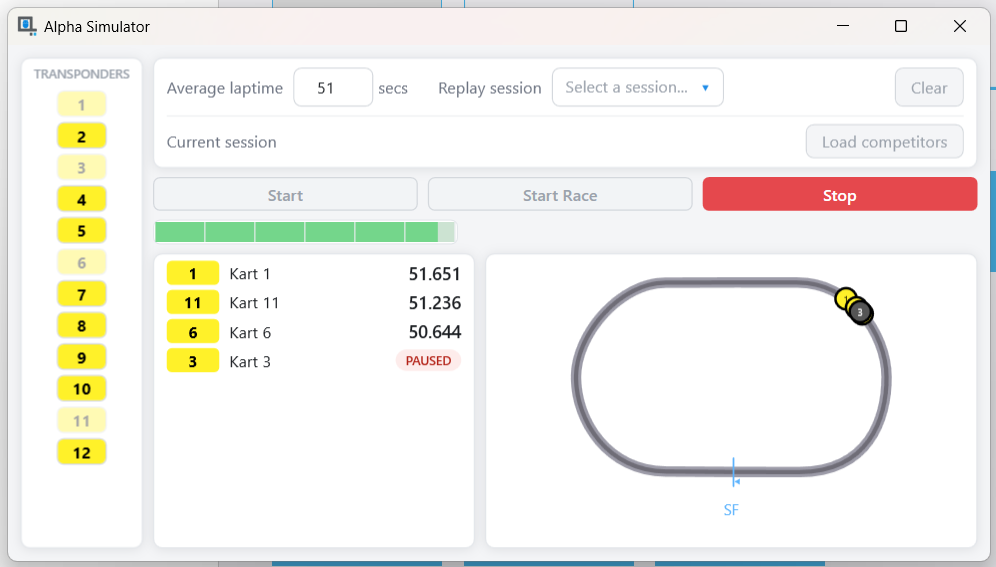
This is then sent to the timing PC as if it were a decoder. The transponders will be shown in the timing app, which can be allocated to competitors if required. You can also pause the passings of transponders or competitors to simulate missed passings or breakdowns etc. More transponders can be added by doubling clicking them from the list, however the simulation must be stopped and started again to start simulating the new transponder passings.
Was this article helpful?
That’s Great!
Thank you for your feedback
Sorry! We couldn't be helpful
Thank you for your feedback
Feedback sent
We appreciate your effort and will try to fix the article